
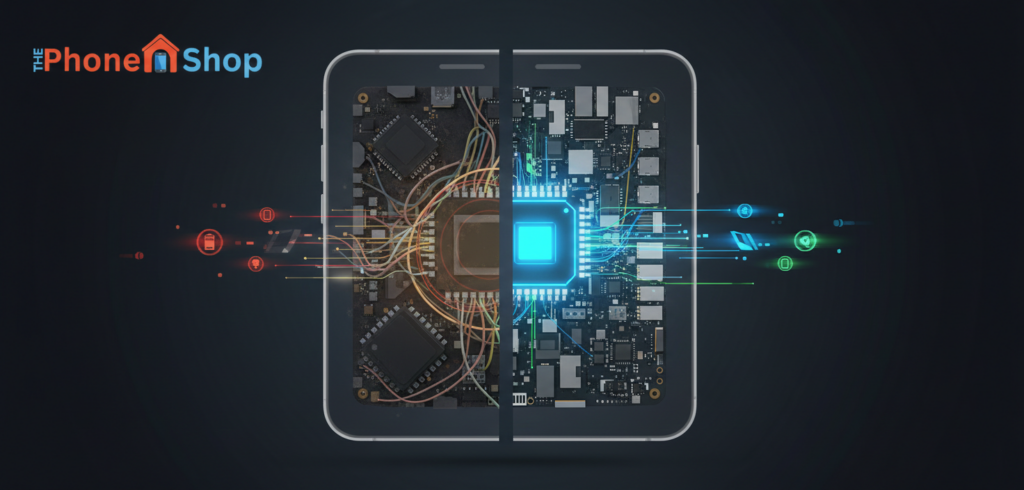
A slow phone can quickly turn everyday tasks into frustrating experiences. Apps take longer to open, scrolling feels laggy, and battery drains faster than expected. Understanding why a phone becomes slow and knowing how to speed up a slow phone using safe, practical steps can significantly improve overall performance—without needing a new device.
This guide explains the real reasons behind poor phone performance and provides easy, proven tips to speed up both Android and iPhone devices.
Why Phones Become Slow Over Time
Smartphones are designed to handle multiple tasks, but performance degradation is common as devices age. Several technical and usage-related factors contribute to this slowdown.
Common Reasons for Phone Slowness
- Too many background apps running
- Limited internal storage space
- Accumulated cache and temporary files
- Outdated operating system or apps
- Aging battery affecting performance
- Heavy animations and visual effects
- Malware or poorly optimized apps (mostly on Android)
Each of these issues gradually affects processing speed, memory usage, and system stability.
Signs Your Phone Needs Performance Optimization
Recognizing early warning signs helps prevent long-term performance damage.
- Apps freezing or crashing frequently
- Delayed response to taps and gestures
- Phone overheating during light use
- Slow startup and app loading times
- Battery draining faster than usual
These symptoms indicate it’s time for phone performance improvement.
Easy Steps to Speed Up a Slow Phone
Restart the Phone Regularly
Restarting clears temporary memory (RAM) and stops unnecessary background processes.
Why it helps:
- Frees up system resources
- Resolves minor software glitches
A restart once every few days can noticeably improve speed.
Clear Phone Cache Safely
Cached data helps apps load faster, but excessive cache can slow the system.
How to Clear Cache on Android
- Go to Settings → Storage → Cached Data
- Or clear cache per app via Apps → Storage → Clear Cache
How to Clear Cache on iPhone
iPhones don’t allow system-wide cache clearing, but you can:
- Delete and reinstall heavy apps
- Clear Safari cache via Settings → Safari → Clear History and Website Data
Clearing cache safely removes unnecessary files without deleting personal data.
Free Up Storage Space
Low storage directly impacts phone speed.
Best practices:
- Delete unused apps
- Remove duplicate photos and videos
- Offload large files to cloud storage
- Clear old downloads and WhatsApp media folders
Keeping at least 20–25% free storage helps maintain optimal performance.
Update the Operating System and Apps
Outdated software often contains bugs and performance issues.
- Updates include speed improvements and security patches
- App updates improve compatibility with the latest OS
Always install stable updates from official sources.
Reduce Background App Activity
Many apps continue running even when not in use.
Android
- Settings → Apps → Background Usage → Restrict unnecessary apps
iPhone
- Settings → General → Background App Refresh → Turn off for non-essential apps
This step significantly improves responsiveness and battery efficiency.
Disable Heavy Animations and Visual Effects
Animations consume processing power.
On Android
- Enable Developer Options
- Reduce or turn off:
- Window animation scale
- Transition animation scale
- Animator duration scale
On iPhone
- Settings → Accessibility → Motion → Reduce Motion
Reducing animations makes the phone feel instantly faster.
Remove Widgets and Live Wallpapers
Live wallpapers and multiple widgets continuously use system resources.
- Replace live wallpapers with static ones
- Remove unnecessary home screen widgets
This improves both speed and battery life.
Check for Problematic or Malicious Apps
Some apps are poorly optimized or drain resources excessively.
Warning signs:
- Phone heats up after installing a new app
- Sudden performance drop
- Unexpected ads or pop-ups
Uninstall suspicious apps and download only from trusted app stores.
Reset App Preferences (Android Only)
This does not delete data but resets default settings.
- Helps fix app conflicts
- Improves system stability
Useful when multiple apps behave abnormally.
Android vs iPhone Performance Optimization Differences
| Area | Android | iPhone |
| Cache control | Manual clearing allowed | App-specific only |
| Background control | More granular | More restricted |
| Customization | High | Limited |
| Long-term updates | Device-dependent | Longer support |
Both platforms can be optimized effectively using the right approach.
When a Slow Phone Needs Professional Attention
Sometimes software fixes aren’t enough.
Professional help may be required if:
- Phone remains slow after reset
- Battery health is below 80%
- Storage or memory hardware is failing
- Phone overheats constantly
A degraded battery can throttle performance, especially on older phones.
Long-Term Impact of Ignoring Phone Slowness
If performance issues are ignored:
- Apps become unusable
- Battery life worsens
- System crashes increase
- Security vulnerabilities remain unpatched
- Device lifespan shortens significantly
Regular maintenance keeps phones usable for years longer.
Conclusion
Phone slowness is usually caused by manageable software, storage, and usage issues rather than hardware failure. By clearing cache safely, managing background apps, freeing storage, and keeping software updated, users can significantly improve speed on both Android and iPhone devices. Consistent optimization ensures better performance, longer battery life, and a smoother overall experience—something regularly emphasized by mobile experts such as The Phone Shop.
FAQs
Why does my phone become slow even with enough storage?
Background apps, cache buildup, outdated software, or battery health issues can slow a phone despite free storage.
Is clearing cache safe for phones?
Yes, clearing cache is safe and helps remove temporary files without deleting personal data.
How often should I restart my phone?
Restarting once or twice a week helps maintain performance.
Can a weak battery slow down a phone?
Yes, aging batteries can throttle CPU performance to prevent shutdowns.
Does factory reset make a phone faster?
A factory reset can improve speed if software issues are severe, but it should be used as a last resort.